

DATEV SmartLogin, SmartCard and DATEV account: Access to DATEV applications
Guide to the DATEV login procedures SmartLogin and SmartCard, as well as the DATEV account. Set-up, rights management, changing your mobile phone and ordering additional access details.
Word-for-word transcript
Hello and welcome to this article. This article addresses the question: how do you actually log in to the DATEV platform? And this question applies to all DATEV applications – including DATEV Unternehmen online, DATEV Meine Steuern and DATEV Personal – regardless of which solution your adviser uses or which services your firm provides for you. Whenever you need to log in to DATEV, this article is relevant.
Essentially, there are three different ways to log in to DATEV. The first option is the so-called DATEV account. This is actually still relatively new and works in much the same way as many other apps. In principle, you can log in using your email address and password.
As I said, this is a new version. It didn’t exist like this before, but is now simply linked to this DATEV account. Then there is the second option, namely the so-called smartcards. They look like this – they’re small USB sticks, or ‘mIDentity sticks’ as they’re called – small mIDentity sticks that you can plug into a computer, which then authenticate you.
However, you don’t actually need them to start with. They’re a relic from the past. In the past, that’s how we always worked with DATEV, and clients did indeed need this mIDentity stick back then. Nowadays, though, you only need one if you’re a self-booker, that is, if you not only use DATEV Unternehmen online, for example, but also DATEV Accounting, and you essentially do all the preliminary bookkeeping yourself and simply hand over the finalised data to your tax adviser, then you would still need one of these mIDentity sticks.
If you have a tax adviser who handles the bookkeeping and data is exchanged solely via DATEV’s cloud system, you no longer need these USB sticks; however, these are mIDentity sticks, which are mentioned here again for historical reasons. The third option – and this is the most modern one – is what’s known as DATEV Smart Log In. This is also the most common method at the moment; with Smart Log In, you receive a letter and use it to register your mobile phone. So, on your smartphone – whether it’s iOS or Android –
DATEV provides a ‘Smart Lock’ app for this purpose. You’ll need to download it once. Essentially, it works just like a standard two-factor authentication app. Whenever you open a programme in DATEV, a QR code appears; you simply scan this QR code using the app, and you’re then logged in.
So this is a separate two-factor authentication process, and this DATEV account I just mentioned – the one where you have an email address and password – is always linked to these methods. So, as an individual, you have a DATEV account. However, you can have multiple Smart Logins, or you can have one Smart Login and a smart card. All of this is possible; it’s a new way of doing things in the DATEV world.
However, most clients use this Smart Login, which allows them to log in to the apps with two-factor authentication. It’s a relatively secure method. What’s important here, regarding the whole issue of administration, is that this must be carried out by the practice. This means that if you’re new to the system, or if a DATEV programme is being registered or used at your firm for the first time, you’ll receive a letter from DATEV instructing you to install this Smart Login app, after which you’ll be able to log in.
For example, if you get a new mobile phone and can no longer find your old login details, or if your old mobile phone is no longer in use, or if you have a new employee joining your company who may also need to upload documents and therefore requires access, please contact your point of contact at the firm, as we can order as many Smart Logins for you as you need. We can therefore set up different users within your firm. We can also specify exactly who is permitted to view what. For example, we can ensure that an accounts clerk is only allowed to access DATEV Unternehmen online – i.e. to upload documents – but is not permitted to access your private income tax documents.
All of this is possible, but it is managed centrally by the firm. That is why it should not be the case that several people use, for example, a single Smart Login or a single smartcard. Each user should have their own DATEV account and their own authentication medium. All of this can be managed by the firm if you need a new authentication device, a new mobile phone, or whatever else.
In that case, too, the firm can simply send you a new Smart Lock by post for registration. But it’s really important here that you familiarise yourself with the article to understand how it works and how to log in using it. As I said, it’s not all that complicated.
These days, everything actually works much like a Smart Lock. But if you have any questions about it, or if you want to manage access rights – for example, if you want to specify that an employee should have access to one thing but not another, or if you’ve got a new employee who needs to be set up – this is all handled by the firm. That means you’ll need your personal contact person for this.
You’ll find all the further details in the written article.
Introduction
DATEV applications such as DATEV Unternehmen Online or DATEV Meine Steuern process tax and business data. A standard password is not sufficient for access. DATEV provides two login methods for this purpose: DATEV SmartLogin as an app on your smartphone and the DATEV SmartCard as a physical chip card. Since February 2026, both methods have been linked to a personal DATEV account, which serves as an additional, standardised form of identification – it links the login method to you personally and replaces previous mechanisms such as smsTAN login. For clients, we usually set up SmartLogin and link it to a DATEV account.
Before going into the details, here are a few clarifications to start with, as there are often misunderstandings on this topic: SmartLogin is not an additional password step, but a standalone login procedure – apart from the app, you do not need a DATEV username or a separate DATEV password. SmartLogin is no less secure than a SmartCard; both methods constitute two-factor authentication with a comparable level of protection.
The DATEV account is not a login medium in its own right and does not replace SmartLogin or a SmartCard – it is the overarching identity to which the login medium is linked.
A SmartLogin is issued on a personal basis, not on a company basis; every person who needs access is given their own SmartLogin. The data and functions you see in a DATEV application do not depend on the SmartLogin itself, but on the permissions we assign to you in DATEV Online Permissions Management – so you can have different permissions in different applications using the same SmartLogin.
The article first provides an overview of the three components, then discusses the DATEV account and the requirement to link it, explains the step-by-step setup of SmartLogin, describes how the practice assigns permissions, and addresses the most common practical questions regarding changing mobile phones, additional SmartLogins for staff or family members, as well as issues relating to passwords and account locks.
An overview of the three components
DATEV distinguishes between the login medium (SmartLogin, SmartCard, mIDentity Stick), the account that represents the identity (DATEV account), and the authorisation that determines which functions are enabled in a specific application (online rights management). All three components must be compatible for you to be able to use an application such as DATEV Unternehmen online productively.
An app-based process on a smartphone or tablet. When logging in on a PC, a QR code is displayed which you scan using the app. Alternatively, the app logs in directly to DATEV apps on the same device via app login. The app is free of charge, can be used from anywhere and runs on iOS and Android.
Suitable for: most client applications – DATEV Unternehmen online, Meine Steuern, Upload mobil, DATEV-Shop, Mandantendialog Jahresabschluss.
A SIM-sized chip card with a personal certificate. When inserted into a card reader on a PC, it identifies the user via a PIN. The card is linked to the workstation where the card reader is located.
Suitable for: local DATEV programmes, email signatures and encryption, law firm staff, and companies with their own in-house accounts department and DATEV software.
USB stick with integrated card reader and smart card. The SIM-format card is inserted into the stick. This simplifies use on devices without an external card reader and also serves as a software protection module for local DATEV programmes.
Suitable for: the same use cases as the SmartCard, where no separate card reader is available.
For clients who work with us via DATEV Unternehmen online or DATEV Meine Steuern, SmartLogin is the appropriate method in almost all cases. The SmartCard comes into play for clients primarily when they work with local DATEV programmes themselves – this usually only applies to companies with their own accounts department.
The DATEV account: the single identity
Since February 2026, the DATEV account has been the central identity for all DATEV cloud applications. It brings together your personal details (name, email address, password, optional two-factor authentication) and is linked to your login method (SmartLogin or SmartCard). Before 2026, you logged in directly using SmartLogin or SmartCard; today, your DATEV account logs you in, and the login method serves as the second factor.
The idea behind this change is that, in the medium term, DATEV aims to provide access to all cloud applications via a single, unified identity – similar to a Microsoft account or an Apple ID. Previous login mechanisms, such as the DATEV user account with an email address and smsTAN for ‘Arbeitnehmer online’, have been replaced by the DATEV account.
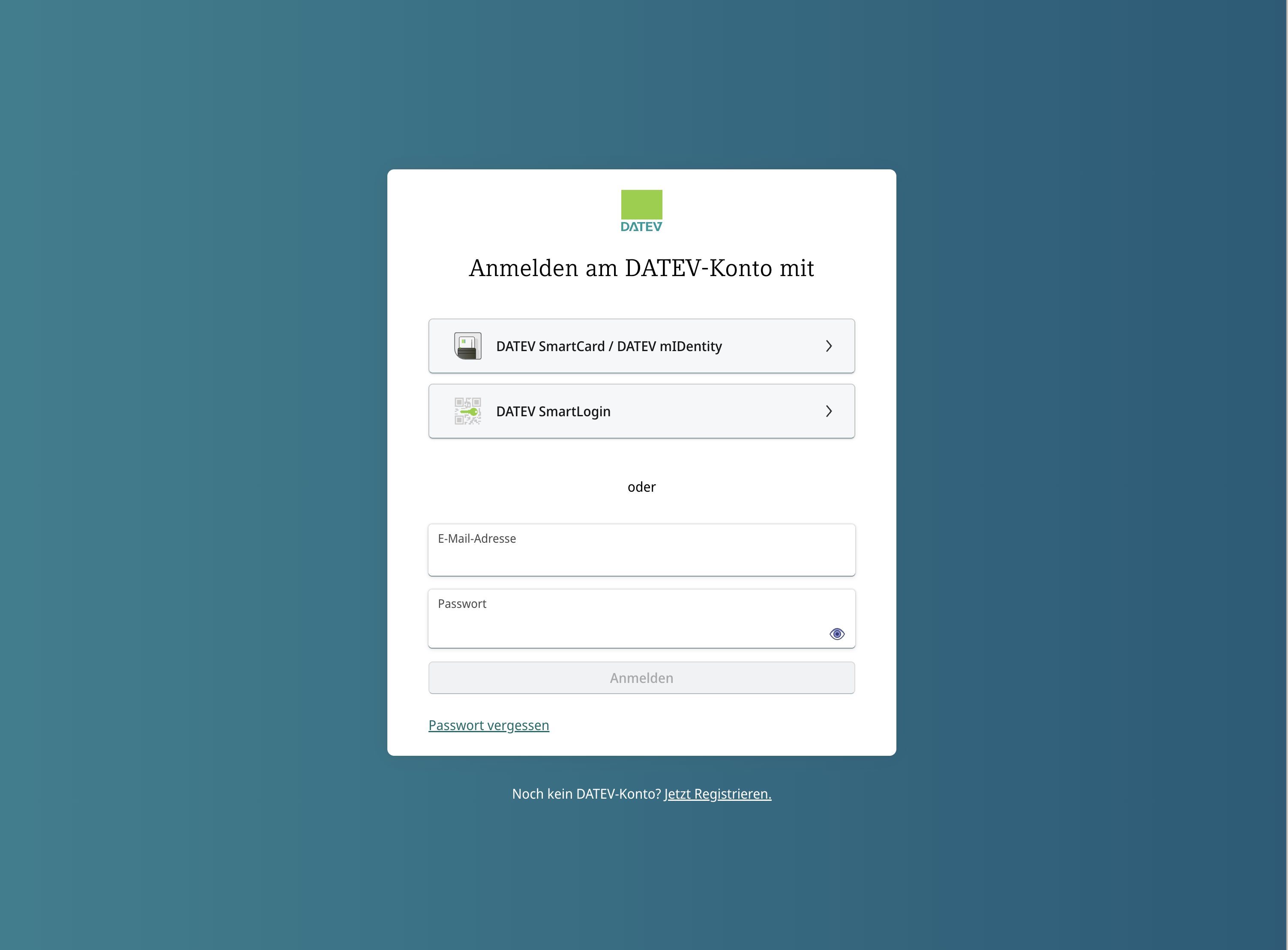
You can log in to all DATEV cloud applications using either a DATEV account (email + password), a SmartCard or SmartLogin. However, SmartLogin (an authentication app on your smartphone) is the most common and secure method for clients.
Obligation to link
As of 15 February 2026: The DATEV cloud applications mentioned can now only be used with a linked personal DATEV account. This requirement has been in force for employees using the online service since 2 March 2026, and for those accessing payslips online until the end of 2026.
If you log in to a DATEV cloud application for the first time today after a long period of inactivity and have not yet linked a DATEV account, you will be automatically redirected to the DATEV Account Wizard. The wizard will guide you through the set-up process in just a few minutes.
How to set up a DATEV account
-
Open the wizard
Open the wizard at datev-konto-assistent.apps.datev.de or you will be automatically redirected there when you attempt to log in.
-
Register
Register using your first name, surname, email address and a personal password.
-
Confirm your email address
You confirm your email address via a link sent to the address you provided.
-
Link your login method
You link your existing login method (SmartLogin or SmartCard) to your new account. To do this, open the SmartLogin app as usual or insert your SmartCard.
-
You can optionally set up two-factor authentication
You can optionally set up two-factor authentication using a TOTP authenticator app (e.g. Google Authenticator, Microsoft Authenticator). For certain applications, such as ‘Arbeitnehmer online’, 2FA is mandatory.
Each user must set up their DATEV account themselves. As a firm, we cannot initiate or carry out this process on your behalf – DATEV expressly prohibits this for identity protection reasons. If several people in your organisation work with DATEV, each individual must complete the setup wizard once themselves.
Your DATEV account remains active permanently, even if you change your smartphone, update your email address or receive a new SmartCard. You simply link the new login method or update your stored details – the account itself remains unchanged.
DATEV SmartLogin: How it works and how to set it up
DATEV SmartLogin is a free app for iOS and Android. Once you have registered, your smartphone serves as your login device for supported DATEV applications. You log in using a combination of the app, your personal SmartLogin password and the device linked to the app.
How to log in on a PC
Open the DATEV application you wish to use in your browser – for example, duo.datev.de for DATEV Unternehmen online or https://apps.datev.de/mytax for Meine Steuern. Select DATEV SmartLogin as your login method. A QR code will appear on the screen.
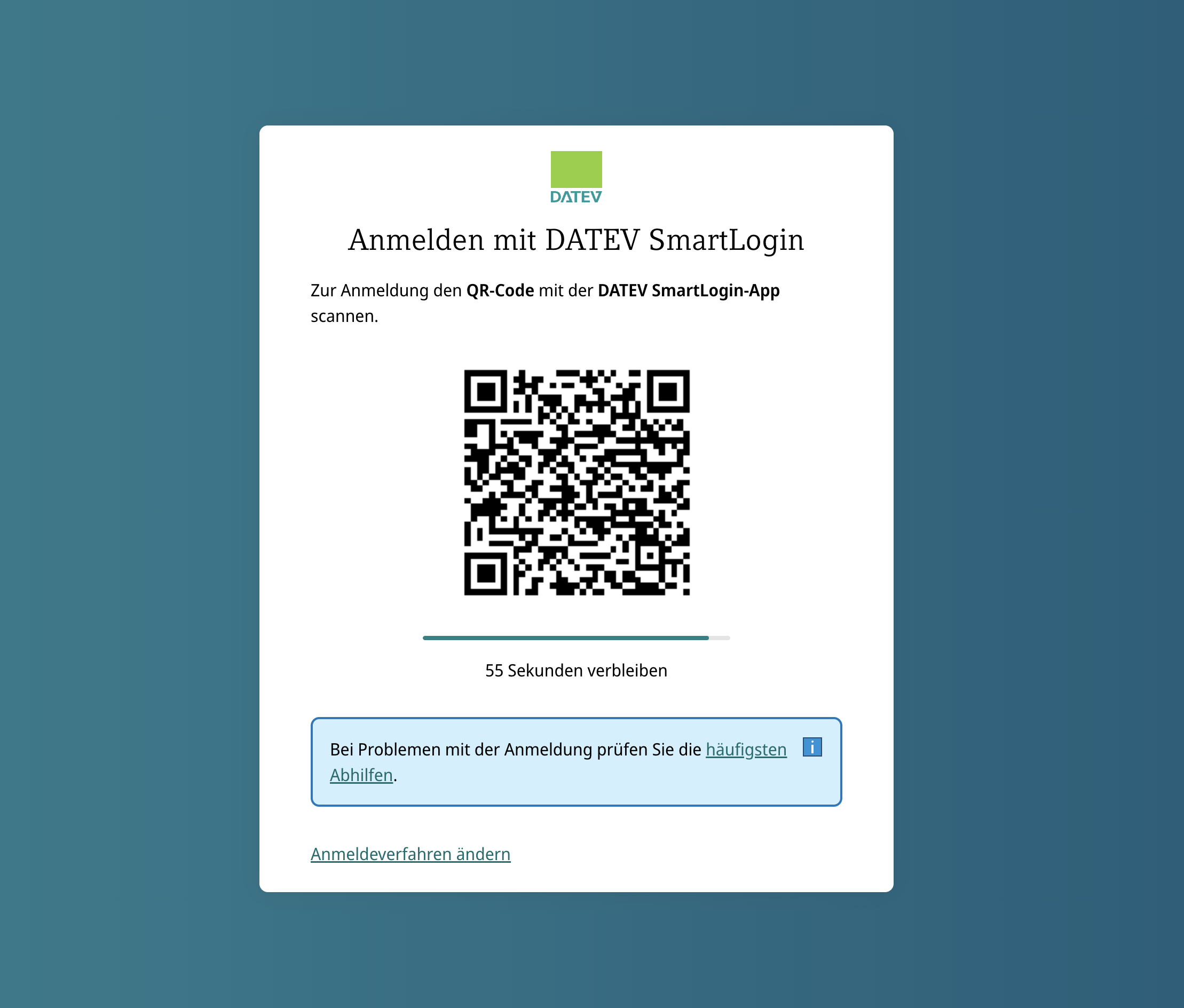
Whenever you open a DATEV application, the SmartLogin QR code appears. This can be scanned using the SmartLogin app (iOS, Android). You will then be automatically redirected to the DATEV application.
Open the SmartLogin app on your smartphone, log in with your password and scan the QR code using the app’s camera function. The application in your browser will launch automatically. The whole process takes just a few seconds.
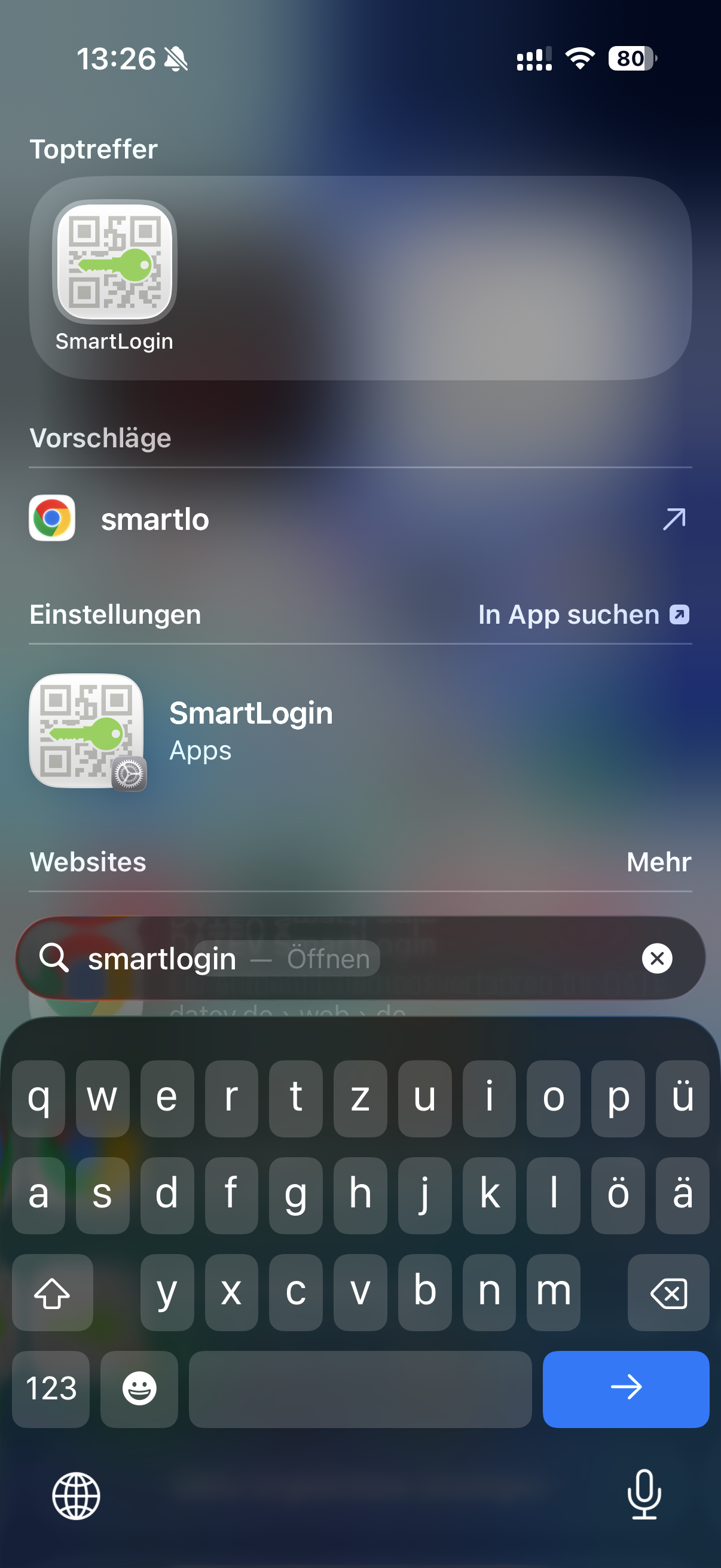
The SmartLogin app must be open in order to scan the QR code.
Logging in on the same device via the app
If you are using a DATEV app directly on your smartphone – for example, DATEV Upload mobil for photographing receipts – there is no need to scan a QR code. The SmartLogin app recognises the login request on the same device and confirms it internally once you have entered your password. This feature is called ‘App Login’ and is active in Upload mobil, the Meine Steuern app and other DATEV apps.
Biometric unlocking
In the SmartLogin app’s settings, you can enable login via fingerprint (Touch ID) or facial recognition (Face ID), provided your device supports this. This eliminates the need to manually enter your password every time you launch the app. The password itself remains stored as a fallback option.
Step-by-step guide to initial setup
We initiate the registration process from our end: we order a SmartLogin for you via the DATEV SmartLogin administration portal.
You will then receive a letter by post containing your SmartLogin ID, a registration code and a PUK.
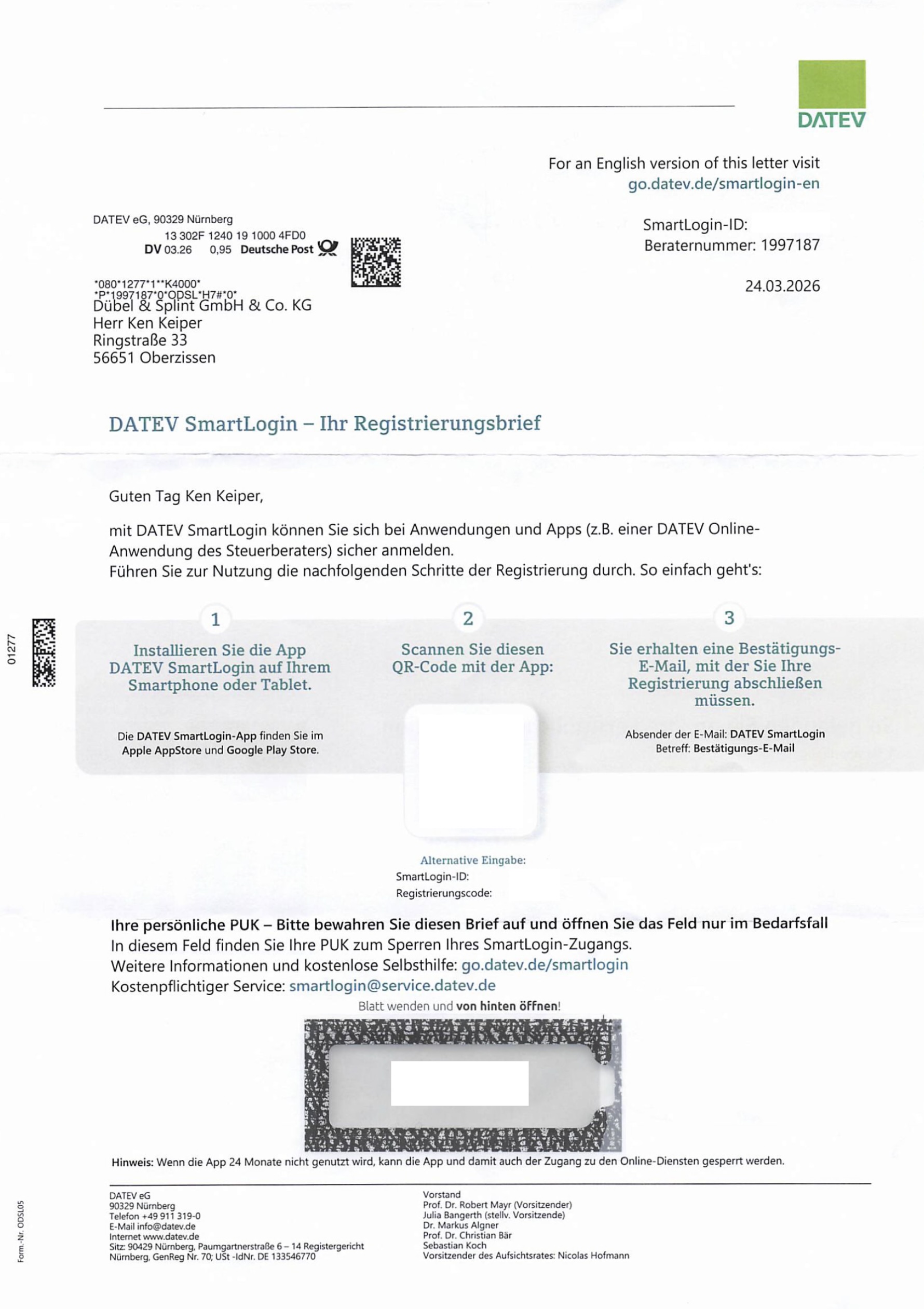
You will receive the registration letter automatically by post. You can then download the DATEV SmartLogin app, scan the QR code on the letter and register for the DATEV apps (e.g. Unternehmen Online, Meine Steuern, MyDATEV Kommunikation).
-
Install the app
Install the DATEV SmartLogin app from the App Store or Google Play Store.
-
Start the registration process
Open the app and select ‘Register’.
-
Enter your registration details
Scan the QR code from the letter or enter your SmartLogin ID and registration code manually.
-
Set your password
Set a personal password that you can remember.
-
Confirm your email address
You confirm the email address displayed in the app via a confirmation link that DATEV sends to that address. You have 120 minutes to complete the confirmation.
-
You can optionally enable biometric unlocking
You can optionally enable biometric unlocking.
-
Link SmartLogin to your DATEV account
Go through the DATEV account wizard, if you haven’t already done so, and link the new SmartLogin to your personal DATEV account.
Applications in which you can log in using SmartLogin
DATEV has significantly expanded the list of applications that support SmartLogin in recent years. The following applications are particularly relevant for clients:
- DATEV Unternehmen Online (duo.datev.de) – document upload, bank connection, reports, cash book, payment transactions
- DATEV Meine Steuern – document exchange for income tax returns between private clients and accountancy firms
- DATEV Upload mobil – an app for photographing and uploading documents directly to DUO
- DATEV Client Dialogue Annual Accounts – joint reconciliation of the annual accounts with us
- DATEV Shop – ordering additional DATEV products
- Meine Steuern app – mobile version of Meine Steuern for iOS and Android
- Online Service Contact – communication with DATEV Support regarding technical queries
DATEV provides a comprehensive, regularly updated overview at go.datev.de/smartlogin.
Applications that still require a SmartCard (relevant for self-accountants where applicable)
Not all DATEV applications have been migrated to SmartLogin. Applications that still require a SmartCard or an mIDentity stick include, in particular, the local DATEV programmes (DATEV Workplace, DATEV Accounting, DATEV Payroll), email signing and encryption via Outlook, and certain sections of the myDATEV client registration process.
A SmartCard is also required on the practice’s side to access tax data stored by the tax authorities under a power of attorney.
These applications are generally not relevant to clients.
Access rights management by the firm
When we set up a SmartLogin for you, this initially only creates the login medium – you do not yet have access to any specific DATEV application. We use the DATEV online rights management system to determine which applications you can see and which functions are enabled within them. This separation between the login medium and access rights is important because it allows us to configure the same SmartLogin differently across various applications.
What the firm controls
Online Rights Management is a separate DATEV portal which we access using our practice SmartCard with administrator rights. There, we assign individual rights to your SmartLogin for each application. In DATEV Unternehmen online, for example, the following areas, amongst others, can be enabled separately:
- Uploading and viewing documents
- Edit and index documents
- Set up bank connections and retrieve bank statements
- Carry out payment transactions (authorise bank transfers)
- View reports (business analysis, trial balance, OPOS lists)
- Maintain the cash book
- Amend master data
The same approach applies to other applications such as ‘Meine Steuern’. We will discuss with you in advance which functions you actually wish to use, and we will enable precisely those.
Access rights for multiple people within the company
In companies where several people work with DATEV – such as management, accounts and sales – each person is given their own SmartLogin and their own permissions.
A typical scenario: Management is authorised to approve bank transfers and view reports; the accounts team is authorised to upload documents and maintain the cash book, but not to approve bank transfers. This division of responsibilities serves both internal control purposes and ensures compliance with the dual-control principle for payments.
Dedicated administrator rights for the client
On request, we can set up dedicated administrator rights for your site. This allows you to activate additional SmartLogins for staff and manage their permissions yourself, without having to contact us for every change. This is particularly useful for larger companies with frequent staff turnover. We will discuss with you whether this model is suitable for you – in most cases, it is simpler if we handle the rights management.
Changes to permissions do not always take effect immediately; it can take anywhere from a few minutes to several hours for them to become active in the relevant application. If you encounter difficulties shortly after permissions have been activated, please log out of the application and log back in; the new permissions will then usually be visible.
Changing your mobile: What happens when you get a new smartphone
SmartLogin is linked to a specific device. If you set up a new smartphone – whether because you’ve bought a new one, your old one is faulty or you’ve lost it – SmartLogin must be transferred to the new device. Exactly how this works depends on whether the old device is still available.
Option A: Old device still available
If you can still use your old smartphone, the transfer takes just a few minutes. You simply reuse the same registration details and retain your existing permissions across all apps.
-
Open the app on the old device
-
Reset the app
Tap the cog icon (Settings) in the top right-hand corner and scroll down to select ‘Reset SmartLogin app’.
-
Install the app on the new device
-
Re-register SmartLogin
Register SmartLogin on the new device using the same SmartLogin ID and registration code from your original letter.
-
Complete the setup
Set a password again and confirm the email address on file.
Option B: Old device no longer available
If your old smartphone is faulty, lost or has already been reset, use the same registration details as in Option A. The registration code from your letter remains valid indefinitely, even if the old registration is still active – the new registration will override it.
-
Install the app on the new device.
-
Register using your existing details. Scan the QR code from your registration letter or enter your SmartLogin ID and registration code manually.
-
Set your password and confirm the email address on file.
-
Your access rights remain unchanged. The rights set out in the online rights management system continue to apply because the SmartLogin ID remains the same.
In both Option A and Option B, your access rights are retained across all DATEV applications because the SmartLogin ID remains the same. You only need to re-register the login method, not the access rights themselves.
If you keep the device and simply reinstall the app
Sometimes the SmartLogin app is accidentally deleted or the smartphone is reset to factory settings. In this case, reinstall the app and register using the same SmartLogin ID and the same registration code from your letter. The code remains valid indefinitely and can be used as often as you like. Your access rights to the DATEV applications are retained because the SmartLogin ID remains the same.
If you no longer have the letter, please contact us – we will retrieve your registration details from the SmartLogin administration system or generate a new code.
Ordering additional SmartLogins
A SmartLogin is personalised. If you need additional access, we will order a separate SmartLogin for each additional person.
Typical scenarios:
- Company staff: Managing directors and accounting staff, each of whom needs to access DUO with their own set of permissions.
- Spouses using ‘Meine Steuern’: In the case of joint tax assessment, each partner receives their own SmartLogin so they can upload documents and approve the tax return independently.
- Change of tax adviser: If you have another adviser in addition to us (e.g. for a second company at a different firm), you will receive a separate SmartLogin for that company from them.
You cannot register an existing SmartLogin on two devices at the same time – each person has exactly one registration on exactly one device. If you wish to switch between a smartphone and a tablet, an additional SmartLogin is required.
The SmartLogin app itself can manage multiple SmartLogins simultaneously if you are involved with several companies and use a separate SmartLogin for each one. When logging in, select the appropriate ID.
Password, lockout and security
SmartLogin is protected by a personal password that you set yourself during registration. It must consist of at least 8 characters and contain lower-case letters, upper-case letters and numbers. Only you know your password; DATEV cannot view or reset it. Until 2020, this feature was called the SmartLogin PIN – you may therefore still come across this term in older guides.
If you forget your password
There is no separate reset procedure for the password. Instead, you must re-register for SmartLogin using your SmartLogin ID and the registration code from your letter, and set a new password during this process. The old registration will be overwritten, but your access rights will remain unchanged. If you no longer have the letter, please contact us.
Account lockout following incorrect entries
After eight incorrect attempts to enter your SmartLogin password, access will be blocked. This block does not expire automatically: you can lift it by re-registering SmartLogin using your SmartLogin ID and the registration code from your letter, and setting a new password. Your rights within the DATEV applications remain unaffected.
Therefore, if you are unsure of your password, please have the registration letter to hand before making any further attempts. If you no longer have the letter, please contact us.
There is a separate 15-minute temporary lock-out: if you enter your SmartLogin ID or registration code incorrectly several times during registration, DATEV will lock the SmartLogin ID for 15 minutes. This lock automatically ends, after which you can continue with the registration.
Automatic log-out
For security reasons, DATEV automatically ends your session in the cloud application if you are inactive for a certain period of time – typically around 20 minutes, depending on the application. Logout takes place on the server side within the application, not in the SmartLogin app. To log in again, scan the QR code once more or confirm the app login. Any data you have already entered will be retained.
A practical tip: From the server’s perspective, only data that is actually transmitted to DATEV counts. If you work in a screen for a long time without saving – for example, when splitting a transaction in the cash book – the session may time out even though you have been working continuously. In such cases, save your work from time to time.
The duration is set by DATEV and cannot be customised.
Security recommendations
- Never disclose your password to third parties – not even to staff members or to us as your practice.
- Keep the registration letter containing your SmartLogin ID, registration code and PUK in a safe place permanently, ideally together with your other access documents. You will need it whenever you change devices, whenever you reinstall the app, and if you forget your password. Treat the letter as confidentially as you would a key.
- If you suspect that your SmartLogin has fallen into the wrong hands, you can immediately block it yourself using the PUK from the registration letter via the DATEV Self-Service Portal – regardless of our opening hours. Please inform us afterwards so that we can set up new access for you.
- If your device is lost or stolen, please contact us immediately so that we can block the SmartLogin and generate a new code.
- Only enable biometric unlocking on devices to which you have physical access.
Common sources of error
- Registration letter disposed of: The letter contains your SmartLogin ID, registration code and PUK. You will need this information whenever you change devices, whenever you reinstall the app, and if you forget your password. Anyone who discards the letter after the initial set-up must request a new code from us. Consequence: a waiting period during which you cannot log in.
- DATEV account not linked: Anyone who has not completed the DATEV Account Wizard will, since 15 February 2026, be automatically redirected to the wizard when logging in to affected cloud applications – right in the middle of their actual work. Consequence: Interruption to your workflow.
- Incorrect SmartLogin in multi-company scenarios: Anyone involved with several companies and who has multiple SmartLogins sometimes scans the QR code with the wrong ID. Consequence: Logging in to the wrong client environment or receiving an error message due to a lack of permissions.
- Old device passed on without being reset: When changing mobile phones, the SmartLogin app on the old device is not reset before the device is sold or given away. Consequence: The registration on the old device remains active until you reset it or we block the SmartLogin.
- App updates ignored: The SmartLogin app requires regular updates. If you refuse to install updates, you will encounter login errors after a while. Consequence: a brief period of inactivity until the update has been installed.
- Password written down unprotected: If you write down your SmartLogin password on a piece of paper in your wallet or in the corner of your screen, you are undermining the security. Instead, use your device’s password manager (iOS Keychain or Android Password Manager) – the password is stored there in encrypted form. Consequence of using a piece of paper: if lost, a third party could potentially gain access to all your DATEV data.
- Repeated attempts despite a forgotten password: If you keep trying to log in after forgetting your password, your account will be locked out after eight failed attempts. Consequence: Access can only be restored by re-registering using the registration letter.
- Having a DATEV account set up by a third party: Some clients ask us or family members to set up the DATEV account on their behalf. DATEV does not technically permit this, and the process fails. Consequence: Double the effort, as the user ultimately has to do it themselves.
Division of tasks
Your tasks:
- Install the SmartLogin app on your own device and register using the registration code
- Set a personal password and make sure you remember it securely
- Go through the DATEV Account Wizard yourself and link your login method
- Optionally, set up two-factor authentication via an authenticator app
- Install updates to the SmartLogin app promptly
- Notify us if you change devices or lose your device
- Keep your email address up to date in your DATEV account and in the SmartLogin administration
Our tasks:
- Order SmartLogin from DATEV and arrange for the activation letter to be sent
- Generate a new registration code if required (e.g. if you no longer have the registration letter or have lost your device)
- Assign rights online via DATEV’s rights management system and tailor them to your usage
- Inform you in good time of any changes at DATEV (e.g. new mandatory updates)
- Act as the first point of contact for technical support in the event of login issues
We will discuss the division of responsibilities individually during the initial consultation – for example, if you wish to take on your own administrator rights for your site, we will adjust the division of tasks accordingly.
Frequently asked questions
Do I need a separate password for DATEV in addition to my SmartLogin?
You do not need a DATEV username or a separate DATEV programme password. In day-to-day use, you enter just one password: your SmartLogin password in the app to scan the QR code. The DATEV account has its own password, which you only need when logging in for the first time via the account wizard and when changing your registered details.
How much does SmartLogin cost?
SmartLogin itself and the app are free of charge for clients. The costs for DATEV applications such as DUO or Meine Steuern, which you use to log in, are charged separately and billed via your practice.
What happens if I lose my smartphone?
Please contact us immediately. We will block the lost SmartLogin in the SmartLogin administration system and generate a new registration code for you to use on a replacement device. A third party cannot use SmartLogin without the password anyway, but blocking the account is a sensible precaution.
I’ve been using SmartLogin for some time – do I still need to set up a DATEV account?
Yes. Since 15 February 2026, linking your account has been mandatory for most cloud applications. The next time you log in, you’ll be automatically redirected to the wizard and can complete the process in just a few minutes. If you carry it out in advance whilst the system is idle, you’ll avoid any interruption in the middle of a work session.
Can my wife and I use the same SmartLogin?
No. A SmartLogin is personalised. If you’re filing a joint income tax return in ‘Meine Steuern’, we’ll set up two SmartLogins so that each partner can upload their own supporting documents and approve the return themselves.
Can my bookkeeper use the same SmartLogin as me?
No, that would constitute sharing your personal login credentials and is not permitted. For company employees, we set up separate SmartLogins with the appropriate permissions – for example, document upload without payment authorisation.
How does the SmartCard differ from the SmartLogin app in terms of security?
Functionally, both methods are two-factor authentication systems offering a comparable level of protection. The practical difference lies in mobility – the SmartCard is tied to a fixed workstation with a card reader, whilst the SmartLogin app goes wherever you take your smartphone.
Do I need a recent smartphone to use SmartLogin?
No. The app runs on all standard iOS and Android devices released in recent years. The only requirement is that the device has the latest operating system update.
Can I use SmartLogin abroad?
Yes. The app works worldwide, provided you have an internet connection. The first time you log in from a new country, DATEV may request additional confirmation by email for security reasons.
What happens if I delete the app?
You simply reinstall the app and register using your SmartLogin ID and the registration code from your letter. Both details remain valid indefinitely; a new code is not required. Your rights within the DATEV applications remain unchanged. If you no longer have the letter, please contact us.
Legal notice
This article provides an overview and is not a substitute for individual advice. The range of functions, menu navigation and terminology in the SmartLogin app, the SmartCard administration and the DATEV Account Assistant may change as a result of updates. The mandatory deadlines for the DATEV account migration are set by DATEV and may be extended; further applications will be gradually migrated to the mandatory DATEV account system.
If you have specific questions regarding set-up, the allocation of user rights, changing devices or login issues, please contact us directly.
As at: May 2026