

DATEV Unternehmen Online: Indexing and retrieving documents
Guide to organising and retrieving documents in DATEV Unternehmen online. Document types, text recognition, data validation and document search in the archive.
Introduction
As soon as a document is uploaded to DATEV Unternehmen Online (DUO), it is categorised: it is assigned a document type and certain recorded details such as the date, amount and business partner. This step is called indexing. It ensures that the document appears in the correct list, can be assigned to the relevant payment and can be retrieved quickly later on.
First, a few clarifications, as there are often misunderstandings regarding indexing:
Indexing does not mean posting – the data entered is preparatory; we take care of the actual posting.
Nor do you need to type in every value manually; text recognition suggests the data for legible documents. However, these values are only suggestions, not a guarantee. A quick visual check is still advisable, particularly for the amount and date.
And the document search does not scan every letter in the document image, but works with the key data that has been captured – we’ll come back to this below.
This article explains what indexing involves, how to check the recognised data and how to retrieve any document from the archive. You can read an overview of how DUO is structured as a whole; the article on preparatory bookkeeping shows how this fits into the monthly workflow:
What indexing involves
Indexing consists of two parts: assignment to a document type and the recorded document data. Together, these two elements turn a document image into a document that can be retrieved and processed further.
Word-for-word transcript
When uploading a document to DATEV Unternehmen Online, we can choose which document category it belongs to: incoming invoice, outgoing invoice, cash, or other. We then drag the document into this area, and once it has been uploaded, we can index it. This means we can now see the ‘Inbox’ here. I can double-click on it, and I can now view the document here in full size. I can see that the text recognition has already identified some details, and I can now select who this document is from – for example, from the supplier Libra. I can then save the document here. Of course, if I wish, I can also move the document to specific locations. So here in the document overview, I can see my inbox. I can see this document there. If I wish, I can now organise it into specific folders, for example. There’s an accounts folder. I also have the option to create my own folders. For example, using this button here, I can move the document anywhere quite flexibly. The key thing is that once it’s been indexed – that is, once I’ve specified that this is, for example, a document from Libra – I can then access all such documents. For example, I can type ‘Libra’ in here at the top and then find all the documents from the supplier Libra. And that’s essentially what indexing means: building up a digital document repository.
The document type
Every document belongs to a document type. The standard types are Incoming Invoice, Outgoing Invoice, Cash Register and Other. You select the document type when uploading; in the app and in the browser, this is a separate step.
The document type determines which list the document appears in and how it is processed further. For example, an incoming invoice classified as ‘Incoming Invoice’ is automatically marked as ‘to be paid’. If the same document is classified as ‘Other’, this does not happen.
If required, we or you can create additional, custom document types – for instance, for a specific type of document that occurs regularly. This keeps the lists organised.
The document type determines whether a document appears in the posting lists. An invoice that has been accidentally filed under ‘Other’ can easily be left unprocessed. If in doubt, it is better to select ‘Incoming Invoice’ or ‘Outgoing Invoice’.
The data entered
For legible documents, the posting wizard uses online text recognition to extract key details – such as the date, amount and business partner. These recognised values are displayed in the value check alongside the document image. You can check them and correct them if necessary.
This data makes two things easier later on: the automatic allocation of a payment to the document and retrieving it from the archive. The more accurate the data entered is, the more smoothly both processes will run.
Checking and completing data
Text recognition works reliably, but it is not error-free. In the case of documents photographed at an angle or with low contrast, a value may be recognised incorrectly or not at all. It is therefore worth taking a quick look at the amount and date before proceeding with the document.
You can also edit receipts retrospectively in the overview – for example, change the receipt type or combine several pages into a single receipt and split them again. This is helpful if a multi-page receipt was uploaded separately or if two receipts ended up in the same photo.
The level of detail shown in the value check depends on the file format. For image files, the recognised values are displayed directly next to the document; for some PDF documents, this display is more concise. The details can be corrected in both cases.
Finding documents
All uploaded documents are stored in DUO’s audit-proof document archive. Using the document search function, you can find any document in just a few clicks, without having to browse through folders.
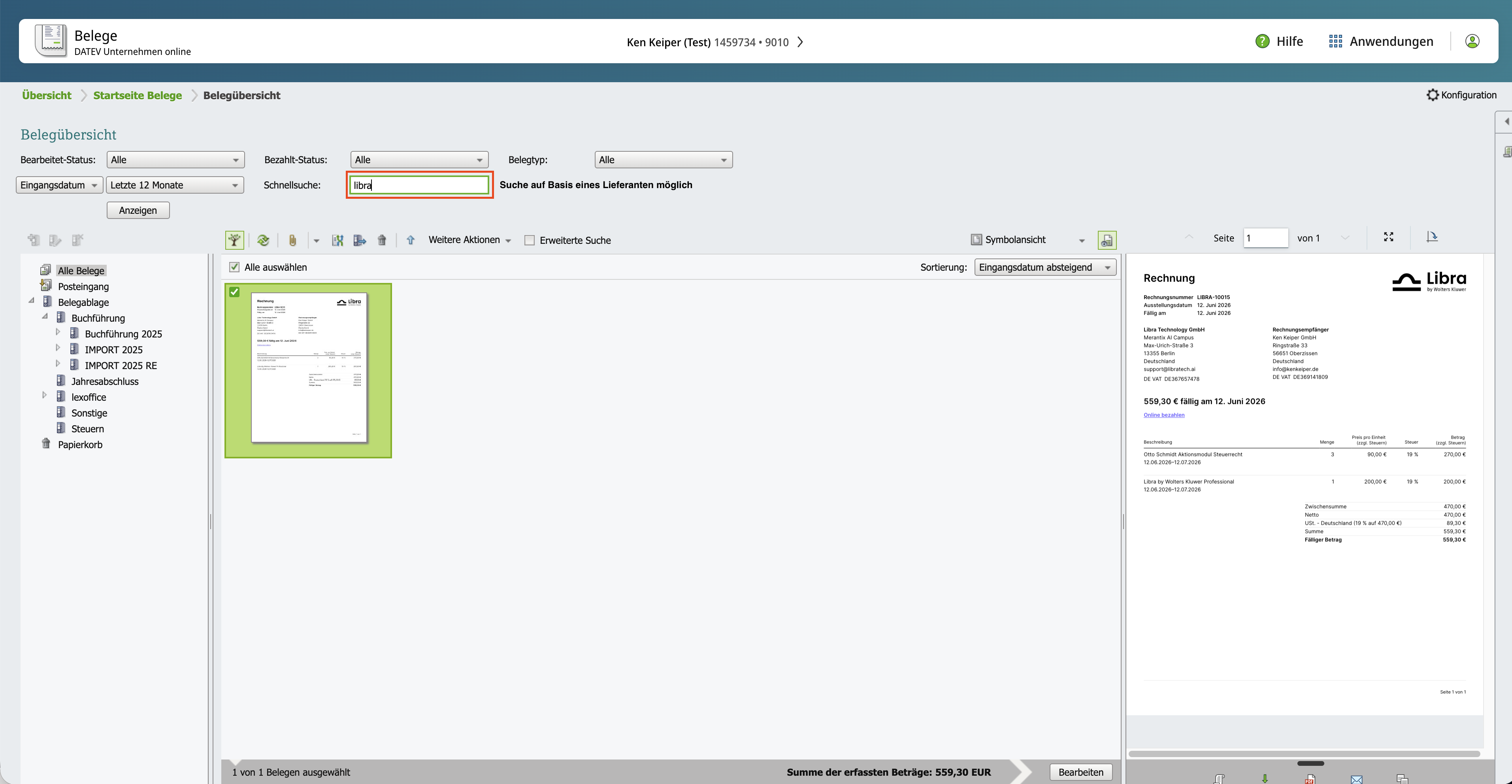
Documents can be searched for by folder, using keywords or, for example, by supplier. This turns DATEV Unternehmen Online into a digital document repository with comprehensive indexing.
Search and filter
The search function uses the key data entered. You can narrow down the documents, for example, by document type, time period, amount or business partner. This allows you to find, for instance, all incoming invoices from a particular supplier for a specific month.
This is not a full-text search covering every letter in the document image. If no data has yet been recorded for a document, it can primarily be narrowed down by document type and upload date. This is precisely why it helps to keep the recognised data clean during upload.
As you and we are viewing the same inventory, you do not need to resend a document once it has been uploaded if we have a query. We can find it in the same archive.
Common sources of error
- Incorrect document type: A document filed as ‘Other’ does not appear in the posting lists and remains unprocessed. It is then missing from the report, and the input VAT remains unclaimed.
- Unverified recognised data: If an incorrectly recognised amount is accepted without verification, the error carries through to subsequent processing. A quick visual check prevents this.
- Multiple documents in a single image: If two documents are photographed together, only one can be captured clearly. Documents should be photographed individually or separated afterwards.
- Related pages uploaded separately: Uploading a multi-page invoice as individual pages makes it difficult to match them up. The pages can be grouped together into a single document in the overview.
- Documents with no legible data: Very blurry documents provide no key details and are difficult to find when searching. Taking a better-quality photo saves time searching later.
Frequently Asked Questions
What is the difference between indexing and posting?
During indexing, you assign the document to a document type and check the data entered. We then carry out the posting, i.e. the allocation to accounts. Indexing is the preparatory step for this.
Do I need to check the recognised data for every document?
A quick visual check of the amount and date is advisable, particularly for documents that are difficult to read. Where documents are clearly captured, the recognition is generally reliable.
Can I change an incorrectly assigned document type retrospectively?
Yes. You can change the document type in the document overview. This can be done at any time after the upload, provided the document has not yet been posted.
How do I find a specific invoice?
Use the document search to filter by document type, time period, amount or business partner. This allows you, for example, to find all invoices from a particular supplier for a specific month.
Can I search for keywords in the document text?
Only to a limited extent. The search function uses the key details entered, not the full document text. Ensuring your data is accurate at the time of upload therefore makes it much easier to find documents later.
Can I create my own document types?
Yes, you can create additional document types for regularly recurring document types. Please get in touch if you’d like to set up a suitable structure for your documents.
As a law firm, do you see the same documents and data?
Yes. We access the same database. You therefore do not need to send us a document again once it has been uploaded.
Legal notice
This article provides an overview and is not a substitute for individual advice. The range of functions and menu navigation in DATEV Unternehmen online may change as a result of updates; this also applies to text recognition and search functions.
If you have any questions about the document structure or your own document types, please contact us directly.
Last updated: May 2026